Virtual Network Editor
24. 03. 18.
Translated by Claude Opus 4.5
AI-generated content may be inaccurate or misleading.
VMware has 3 network modes.
Bridged, NAT, and Host-only.
To change network settings, use a program called Virtual Network Editor.
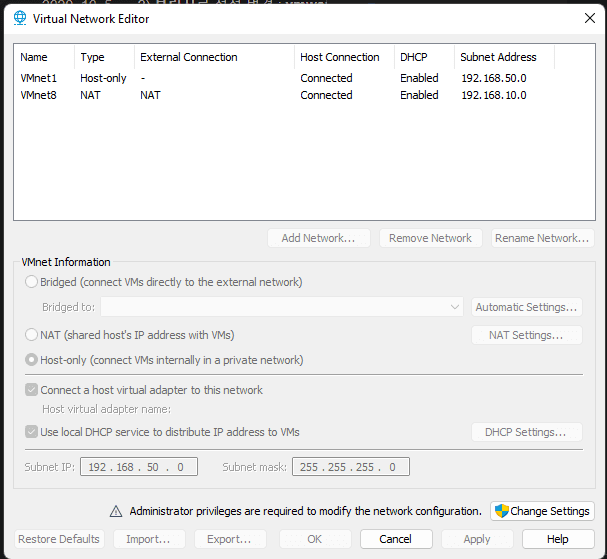
To make any changes, you need to click the Change Settings button at the bottom to grant administrator privileges before you can modify settings.
Virtual networks are configured as one virtual network adapter with the VMnet* combination, and you can freely create and delete from VMnet0 to VMnet19.
Let's first look at the 3 network adapters that are configured by default.
VMnet0 (Type Bridged)
By default, VMnet0 is set to bridge mode.
This can be changed, and to use it, select the device in the section labeled "Bridged to:".
The device you should select is the NIC that is actually accessing the internet on the host machine - in other words, for a laptop, it would be the wireless adapter.
Like Host-only, multiple bridge networks can be declared, but a characteristic is that you cannot create bridges using the same NIC.
When you select this option, an IP is assigned according to the actual network environment where the host PC is running, and in institutions like schools that use static IPs, you need to configure a static IP inside the VM since there's no DHCP server.
Since it runs as if it's on the actual network, other PCs on the same network can also access the virtual machine.
VMnet1 (Type Host-only)
By default, it's set to Host-only mode.
It can also be changed, and the characteristic is that VMs connected to this network can only communicate with other VMs within this network.
Configurable settings include Subnet IP, Subnet mask, DHCP usage, and DHCP range settings.
VMnet8 (Type NAT)
This is the most interesting VNIC.
It works similarly to Host-only, but with Network Address Translation technology applied, external internet access is possible by sharing the host's internet, and VMs are assigned private network IPs within the VNIC.
Like Host-only, you can configure Subnet IP, Subnet mask, DHCP usage, and DHCP range,
NAT has its own unique settings accessible by clicking the NAT Settings button.
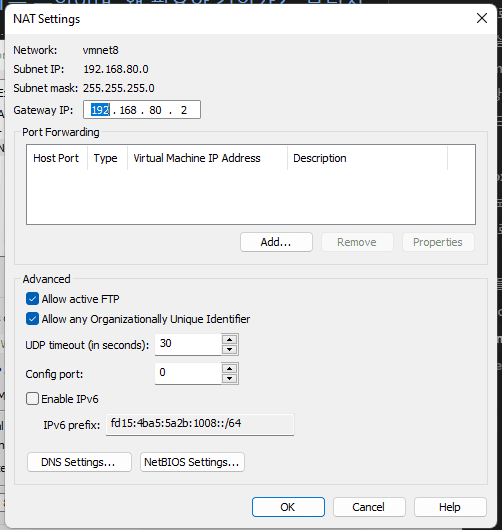
Here you can perform port forwarding, which is unique to NAT. Like port forwarding on a router, if you configure the host's port (the exposed port), the guest's port (the service port), and the guest's IP (the target for port forwarding), it will perform port forwarding.
When port forwarding is successful, similar to bridge mode, other PCs on the same network as the host PC can access that service.
Type Custom
This type appears when you disable the "Connect a host virtual adapter to this network" option in Host-only mode.
It's almost identical to Host-only mode, but the characteristic is that communication between the host PC and virtual machines in the Custom Type VNIC becomes impossible.
This is what people generally think of as Host-only mode.
Actually, Host-only mode allows communication not just between virtual machines, but also with the host computer.
Published:
Modified: