Repurposing an Unused Laptop as a Proxmox Server
Proxmox installation and configuration guide, introducing efficient utilization on a laptop.
Translated by Claude Opus 4.5
AI-generated content may be inaccurate or misleading.
What is Proxmox?
A Type-1 hypervisor that provides similar functionality to Hyper-V, ESXi, XenServer, KVM, etc. The advantage is that it's open source.
Installation Environment
For proper usage, regardless of the environment, it must be installed on bare metal.
The minimum requirements are as follows:
CPU: x86 64bit cpu
*Intel VT/AMD-V capable CPU for full virtualization support

RAM: 1GB RAM + additional RAM needed for guests

Hard drive (anything that can store data)

At least 1 network card
In my case, I installed it on the following specs:
Lenovo ThinkPad E485 (Ryzen 3 2200U + 12GB RAM(8 + 4) + 1TB HDD)As you can see from the specs, a hypervisor doesn't require particularly high specifications. A laptop sitting unused in your drawer is more than enough.
Installation Process
-
Download the ISO file from the official website.
-
Burn the ISO file to USB. (Use rufus on Windows, dd on Linux)
-
Plug the USB into the laptop and boot. When you see the following screen, select
Install Proxmox VE.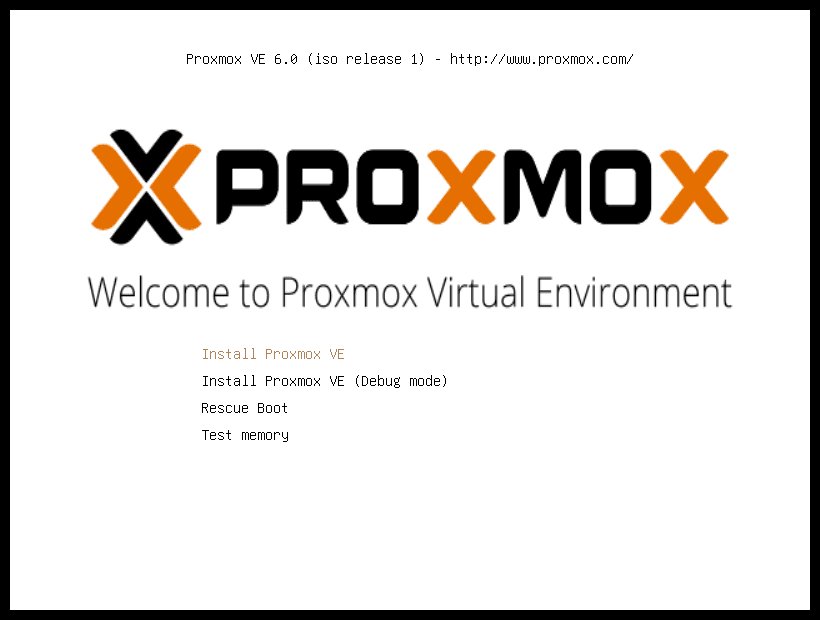
-
Complete the installation by appropriately selecting the disk, a suitable password, appropriate timezone, and other appropriate options.
-
Connect to https://server-ip:8006 and log in. In my case, it was
192.168.100.113:8006.
Remove Subscription Repository and Add Non-Subscription Repository
# vim /etc/apt/sources.list.d/pve-enterprise.listComment out as follows:
# deb https://enterprise.proxmox.com/debian/pve buster pve-enterpriseOpen the configuration file with the following command:
# vim /etc/apt/sources.listAdd the following content:
# no subscription
deb http://download.proxmox.com/debian/pve bullseye pve-no-subscription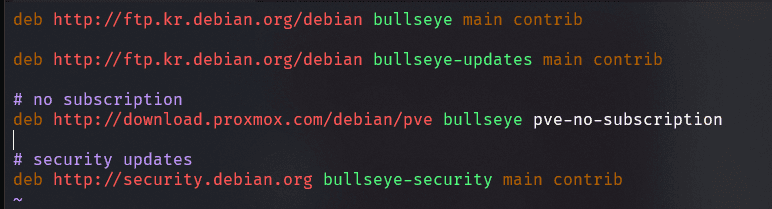
Save and update:
# apt update && apt dist-upgrade -y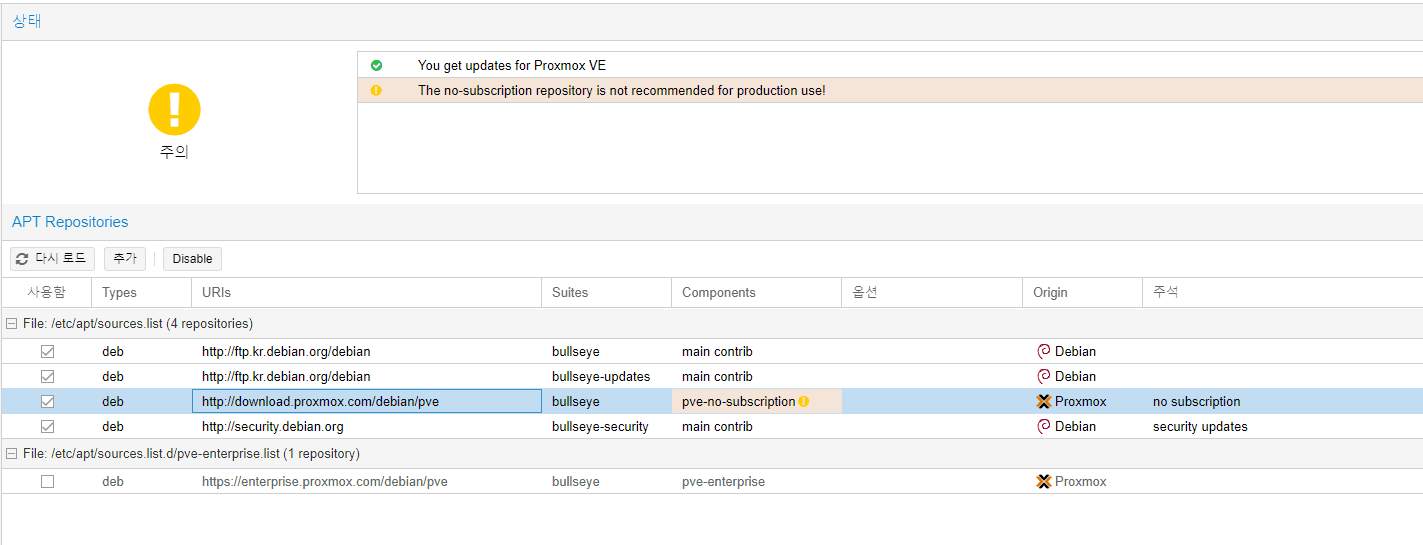
The web console shows a warning, but it doesn't matter since this is a development server!
Remove Subscription Notice Message on Login
# vim /usr/share/javascript/proxmox-widget-toolkit/proxmoxlib.jsAround line 513, find:
if (res == null || res == undefined ||
		!res || res.data.status.toLowerCase() ! = 'active') {
Replace with the following code:
if (false) {Apply the changes with the following command:
# systemctl restart pveproxy.serviceSleep Mode Settings When Installed on a Laptop
If you're using Proxmox as a server, it would be inconvenient if it goes into sleep mode when you close the lid.
# vim /etc/systemd/logind.confChange the following line:
#HandleLidSwitch=suspendTo this:
HandleLidSwitch=ignoreThen run the following command:
# systemctl restart systemd-logindNow closing the lid won't put the system into sleep mode.
Apply Dark Mode to Web Console
bash <(curl -s https://raw.githubusercontent.com/Weilbyte/PVEDiscordDark/master/PVEDiscordDark.sh ) install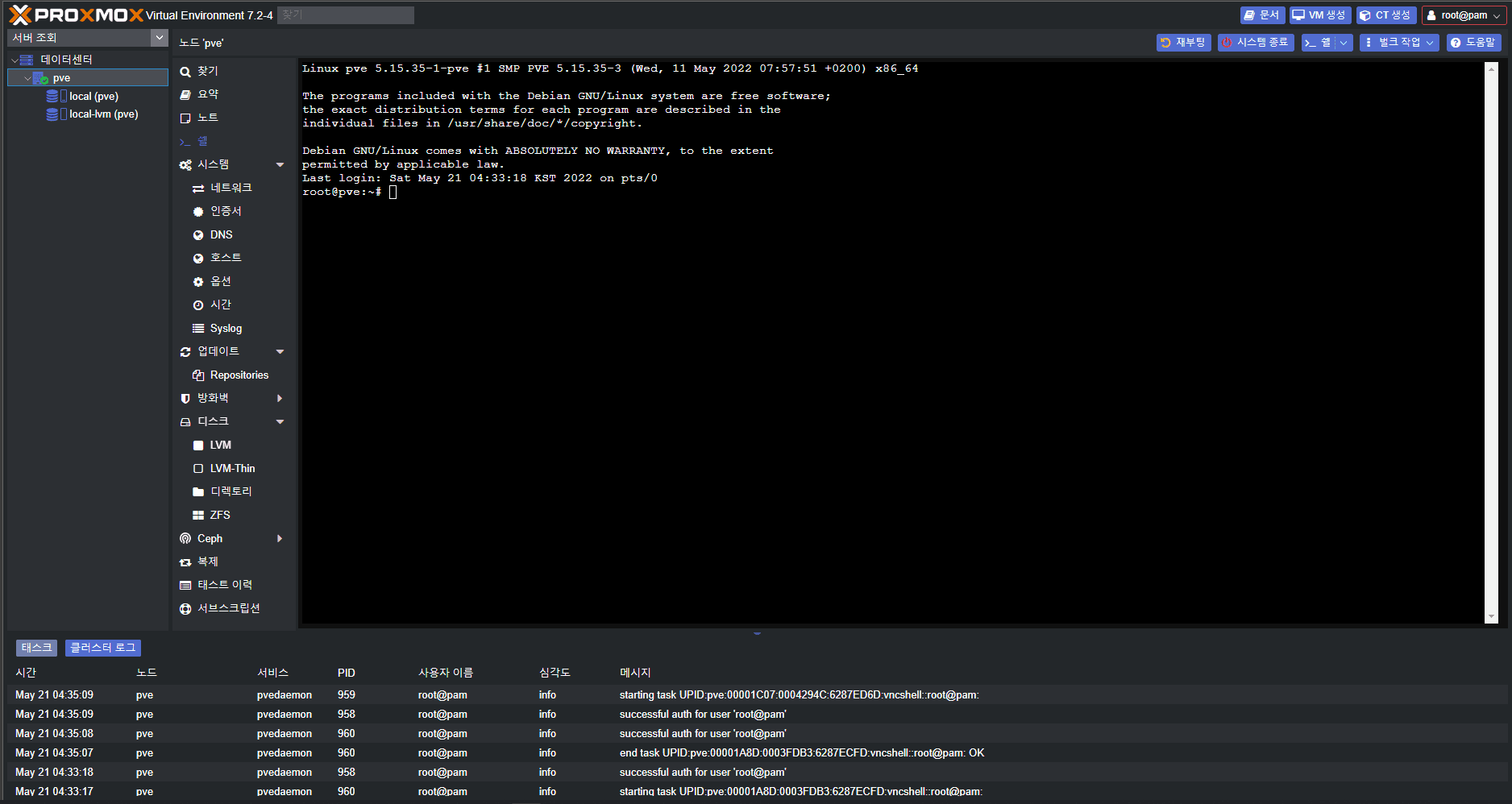
Press F5 to reload and the theme will be applied!!
https://github.com/Weilbyte/PVEDiscordDark
AMD GPU Backlight Fix
In the /etc/default/grub file,
Add acpi_backlight=native to GRUB_CMDLINE_LINUX_DEFAULT
Run update-grub and then reboot
Future Plans
I plan to use it for building Kubernetes clusters, Jenkins CI/CD, private Docker Registry, and more. For now, I just want to appreciate having an on-premise server for test deployments and production deployments.
Published:
Modified: