GitHub Signed Commit
How to add Verified tags to your local commits using GPG
Translated by Claude Opus 4.5
AI-generated content may be inaccurate or misleading.
Verified Tags Only Appear on GitHub Web UI
At some point, GitHub added a feature that displays a README on your profile if you create a repository with your username and add a readme.md file.

Since this repository only contains a readme.md file, most edits are done through the GitHub Web UI.
When you look at the commit log after editing this way, you'll see the following:

You can see a Verified tag that wasn't present on commits I uploaded from my laptop.
I wanted this indicator on my local commits as well, and after some research, I found there were good reasons to implement this, which led me to write this post.
GPG (GNU Privacy Guard)
This is a program based on PGP, an email encryption tool. It primarily uses RSA and also supports DSA and Elgamal, DSA, etc.
Why the Verified Tag Exists on GitHub
Let's say you've purchased a new laptop or computer and are setting up git for development. You'll probably need to enter the following commands:
git config --global user.name
git config --global user.email
GitHub uses this information to display who made each commit. If you think about it, there's something odd here - the name and email are stored exactly as you input them. They can easily be manipulated, and I've had experiences where I entered the wrong email, but pushing that commit to GitHub didn't cause any major issues.
This is where the Verified tag comes in.
Using GPG-generated keys shared with GitHub, you digitally sign your commits. When you push those commits, GitHub verifies with the shared key that you actually made the commit and adds the Verified tag.
In summary, even though a commit says you made it, there's no way to verify it without digital signing to authenticate the commit. Additionally, commits made through the Web UI have Verified tags because GitHub automatically signs them.
How to Sign Local Commits
The following process is based on generating GPG keys in WSL2 and creating commits. For Mac or Windows, a quick search will help you proceed.
Generating a GPG Key
To create a GPG key, use Gpg4win on Windows, Mac GPG on macOS, and GnuPG on Linux.
For macOS, use brew install gnupg. Debian-based systems have it installed by default, but if not, use apt install gnupg. For other distributions, you can figure it out, right?
Generate a GPG key with the following command:
gpg --full-generate-keyYou'll be presented with several options. First, you'll be asked to choose the key type.
Just press Enter for the default RSA and RSA key.
Next, you'll be asked for key size - the minimum requirement is 4096, so enter 4096.
Then choose the expiration date - the default is unlimited.
When asked Is this correct? (y/N), enter y.
For Real Name:, enter your GitHub username.
For Email address:, enter an email that's verified on your GitHub account.
Finally, for Comment:, add a description for this key - something like "For Github Signed commit" should work.
When asked Change (N)ame, (C)omment, (E)mail or (O)kay/(Q)uit?, enter O if everything is correct to finish creating the key!
gpg --list-secret-keys --keyid-format=longOr use this command:
gpg -k --keyid-format=longto verify the generated key.
The following example assumes a key was generated like this:
/home/minpeter/.gnupg/pubring.kbx
---------------------------------
pub   rsa4096/2167399770ABC2F3 2022-10-11 [SC]
      2E992F8F8D1944D661F7FA652167399770ABC2F3
uid                 [ultimate] minpeter2 (for github signed Commit) <kali2005611@gmail.com>
sub   rsa4096/ADE4A2BCCAEA3D37 2022-10-11 [E]
Registering the Generated GPG Key on GitHub
Use the following command to output the public key in ASCII format:
gpg --armor --export 2167399770ABC2F3Copy the entire output from -----BEGIN PGP PUBLIC KEY BLOCK----- to -----END PGP PUBLIC KEY BLOCK-----.
Then go to GitHub Settings > SSH and GPG keys.
In the GPG keys section, click the green New GPG key button.
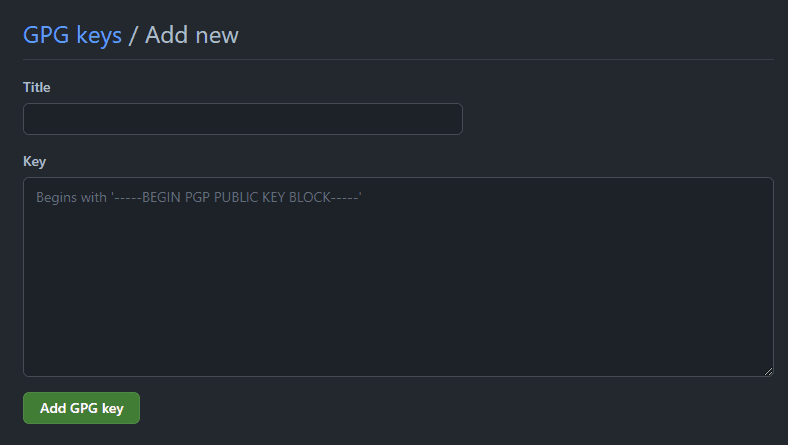 For Title, enter a description for the key. In my case, I used
laptop-name wsl2 signed commit.
You just need to recognize it later, right?
Then paste the public key you copied into the Key field.
git config
We're almost done with the setup. On the laptop where you want to make signed commits, register the key with this command:
git config --global user.signingkey 2167399770ABC2F3For Linux, run the following commands:
zsh
[ -f ~/.zshenv ] && echo '\n## GIT gpg configure\n\nexport GPG_TTY=$(tty)' >> ~/.zshenvbash
[ -f ~/.bashrc ] && echo '\n## GIT gpg configure\n\nexport GPG_TTY=$(tty)' >> ~/.bashrcNow all the setup is complete. Simply add the -S option when running git commit.
If you want to sign all commits, you can enable it with this command:
git config --global commit.gpgsign trueNow when you commit, you'll see the Verified tag on your commits.

References
Published:
Modified: