Changing ThinkPad BIOS Boot Image
22. 09. 08.
Translated by Claude Opus 4.5
AI-generated content may be inaccurate or misleading.
Update Log
| Date | Changes |
|---|---|
| 2020/XX/XX | This article was written (moved from an old blog, so there's no date metadata..) |
| 2021/08/22 | Migrated to Jekyll blog |
| 2022/09/08 | Renamed from "On Linux..." to "Changing ThinkPad BIOS Boot Image", added Windows method, minor detail additions, added tags, added update log |
Introduction
I have a strange fondness for ThinkPads. When buying a new laptop, even though MacBook was an option at the same price point, I deliberately chose the T14s gen3..? I used Linux on my previous T470, and now I'm enjoying WSL2 with Windows on my T14s gen3. Along with buying a new laptop, I want to add a method for changing the ugly red Lenovo logo to the cute Golang mascot Gopher on Windows. Since this article was originally about changing the BIOS boot image on Linux, it also provides instructions for Linux. I hope this article helps you have a more enjoyable ThinkPad experience.
Common for Windows / Linux
ThinkPads have a feature to put custom images in the BIOS. The reason this can be called a feature is that for IdeaPad / Legion, it's not possible without special modifications.
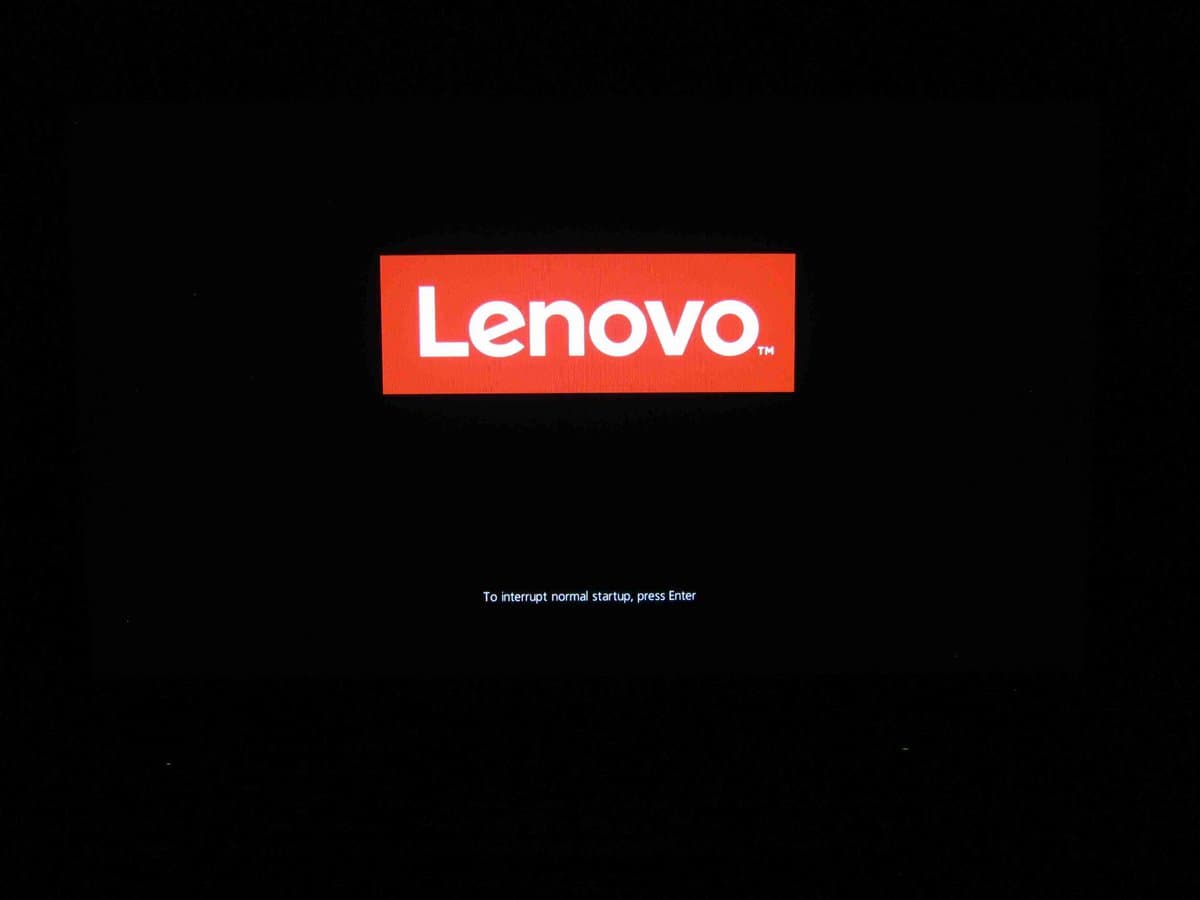
What we'll change in this article is this screen:
You need to create an image to replace the Lenovo logo, with the following conditions:
- Resolution of 40% or less of the laptop resolution (max 768 * 480 for 1920 x 1200)
- Allowed file extensions are GIF, BMP, JPG
- Maximum image size is 60KB
In my case, I created the image as follows:
- Search for a Gopher I like
- Download and remove background at remove.bg
- Create a 768 * 480 canvas in GIMP and set the background to black (000000)
- Place the background-removed image in the center
- Export as GIF (for some reason, GIF has the highest success rate)
The reason for removing the background and replacing it with black is that it looks clean when booting.
The pre-processed result is available at /images/LOGO.GIF.
(The blog framework I switched to can't process GIFs.)
This character called Go Gopher is... licensed under CCA 3.0. CCA 3.0 allows commercial use with attribution, so you can download and use the above image. As an aside, the original creator Renee French... is creepy. Don't go there.
Here, it branches depending on whether the BIOS is the latest version or not. If it's the latest version, it blocks using the same version BIOS. Therefore, you need to downgrade to an older BIOS and then update again to change the image. If your BIOS is not the latest version, you can perform the image change directly. So if your BIOS is old, you only need to download the latest version BIOS. However, if your BIOS is the latest version or if the image change fails, try downgrading to one version before the latest and try again.
This article will explain assuming you already have the latest BIOS version for both Linux and Windows. If you have an older BIOS, skip steps accordingly. (Actually, there's no problem even if you follow it as is..?)
Some models have an option in BIOS settings that prevents rolling back to older BIOS. My newly purchased T14s gen3 was like that.
To resolve this, go to BIOS with F1 > Security > UEFI BIOS Update Option > Change Secure RollBack Prevention option from Enabled to Disabled. Don't worry as this option will be re-enabled after the image change.
Now you need to download the BIOS image provided by Lenovo.
- Search for your model name at Lenovo PC Support.
- Click Drivers & Software.
- In Manual Update > BIOS/UEFI section, click the Details button (document icon) for BIOS Update (Utility & Bootable CD).
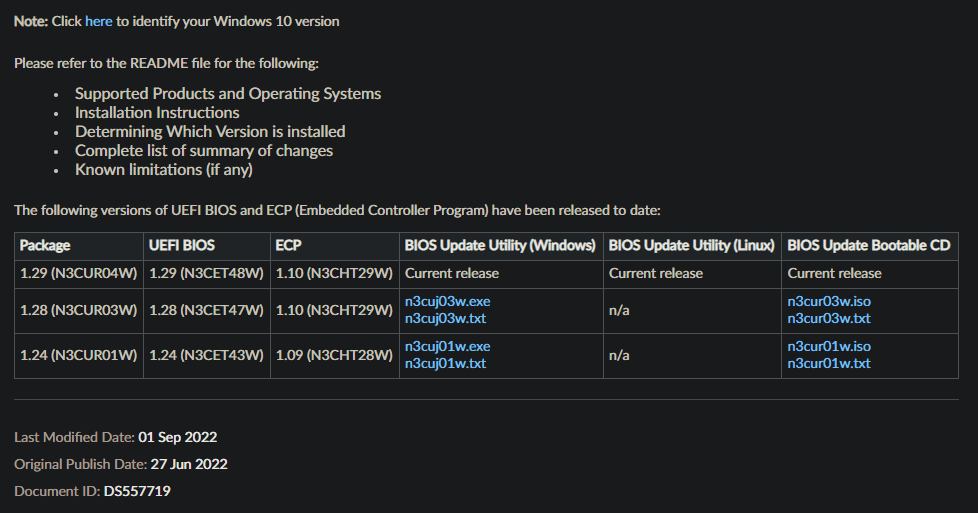
You need to download both the latest version (1.29 in the image) and the previous version (1.28), and from here the process differs for Windows and Linux. Proceed according to your environment :) Note that this article was written when version 1.29 was latest on 2022/09/08, so change the versions accordingly.
On Windows...
The method on Windows is as follows:
-
Download the BIOS Update Utility (Windows) files for each version. (n3cur03w.exe in the image and version 1.29 n3cur04w.exe shown slightly above)
-
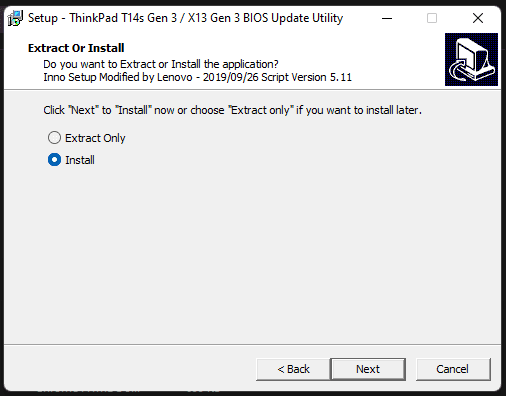
Run the older n3cur03w.exe and proceed until you see the following window.
-
Select Install and proceed.
-
The computer will automatically reboot and wait for the downgrade to proceed. Power connection is essential. Ensure stable power supply if you don't want to brick it.
-
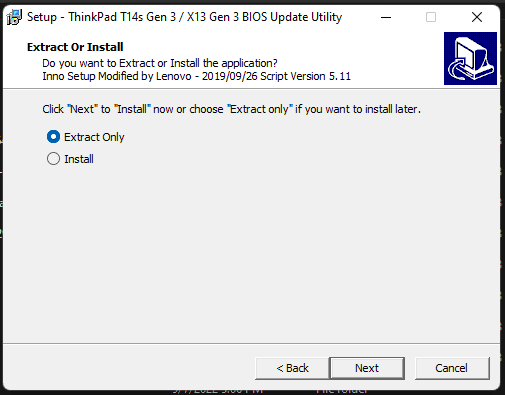
If the computer boots normally, run the version 1.29 file n3cur04w.exe.
-
Select Extract Only from the above screen and proceed.
-
Navigate to
C:\DRIVERS\FLASH\n3cuj04w\20220709.2341095. (The path varies by version but should match up to \FLASH. Look carefully) -
Put your prepared image in the
Rfs\StartupImagesfolder. The filename must be one of LOGO.GIF, LOGO.JPG, or LOGO.BMP. -
Find and run
WINUPTP.EXE, and after waiting, the boot will proceed with the changed logo. It will persist even after the next BIOS update. Congratulations!! Now you have a cuter boot image :)
On Linux...
From version 1.29, it seems BIOS Update Utility can also be used on Linux. There are still models that don't support it, and since I haven't used it, I'll use the existing method for now.
Changing the boot image is also possible on Linux. But I said possible, not easy.
The method on Linux is as follows:
-
Download the BIOS Update Bootable CD files for each version. (n3cur03w.iso in the image and version 1.29 n3cur04w.iso shown slightly above)
-
Once the files are downloaded, enter
geteltorito -o bios-image.img n3cur03w.iso. -
Prepare a USB (note that data will be erased) and find the USB disk path with lsblk command.
-
Enter
sudo dd if=bios-image.img of=/dev/sdX bs=1M status=progress oflag=sync, modifying the X value afterof=/dev/sdto match your disk path. -
Shut down the laptop, boot from USB, and press y and enter appropriately to downgrade the BIOS.
-
After the downgrade, repeat steps 2-4 above with the 1.29 version file instead of the 1.28 version file.
-
Open the USB and you'll see EFI and FLASH folders. Put your prepared image under the
FLASHfolder. The filename must be one of LOGO.GIF, LOGO.JPG, or LOGO.BMP. -
Now boot from the USB and press y and enter appropriately, and the logo image will be applied along with the BIOS update!
- END -
The reason I wrote this... was because I was worried the BIOS update might reset it, and I needed to document it so I could redo it.
This was my first blog rule.. hmm.. I don't know why I wrote the reason for each article
Published:
Modified: